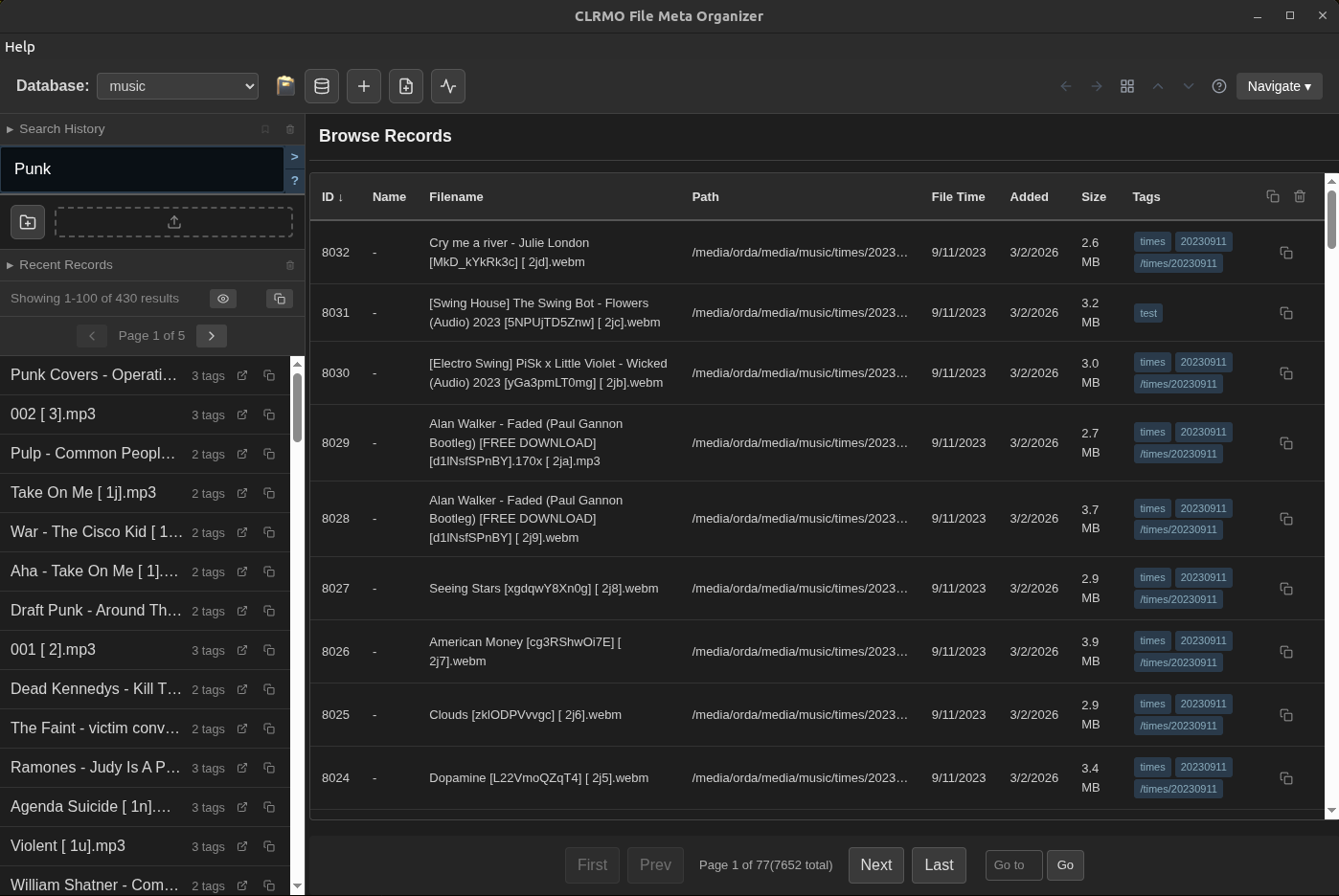
CLRMO File Meta Organizer - Features Guide

This app lets you add metadata to files, search and match files using that metadata, and perform bulk operations on the results.

File Details Page

The file page is where you add details for individual files. For images, audio, and video files, you can preview them directly in the app. You can disable previews in the settings if you prefer.

File details page showing preview and metadata fields

The file page with preview and metadata options

Attributes and Tags

Attributes and tags are the core metadata you can attach to files. Use attributes to define values like "rating" or "artist". Tags are simple labels without values. Both are fully searchable.

Attributes and tags editor

Adding attributes and tags to a file

Powerful Search

The search system supports complex queries. Use the ~ prefix to search filenames and paths. Combine multiple criteria with tags and attribute filters. For example: search for "family" in filenames, tagged with "family photo", with a rating over 5. You can even use brackets for grouping, though they are usually not needed.

Complex search example

A semi-complex search combining filename, tag, and attribute filters

Built-in Help

Click the search help button to see all available search options.

Search help button location Search help documentation

Access detailed search documentation

If there are unread help tips on a page, the help icon lights up green to guide you.

Help icon indicator Search bar with help tips

Unread help indicators appear as green icons

Multiple Databases

Create separate databases for different file types—audio, images, video, or any category that makes sense for your workflow. This keeps your searches focused and relevant.

Database management view

Managing multiple databases

Custom Import Filters

When importing a directory, you can filter which files get added. There are built-in filters for audio, images, and video. You can also create custom filters using glob patterns, regex, or exact matches.

Database settings with filters

Configure import filters in database settings

The Clipboard

When you import files, they automatically go into the clipboard. You can also copy search results or individual files to the clipboard for bulk operations.

Clipboard panel

The clipboard holds files for bulk operations

Clipboard Actions

The clipboard becomes powerful with clipboard actions. Search for files matching criteria (like all family photos with rating under 5), then perform bulk operations: delete files, add or modify tags and attributes, or generate playlists.

Clipboard actions part 1

Bulk operations: delete, add tags, set attributes

Playlist Export

One handy feature is generating M3U8 playlists for your music player directly from tagged files.

Clipboard actions part 2

Export paths as M3U8 playlist for your music player